Loading language…
HaoQuantX

Help Center

Start with research and Demo, then connect an exchange account only when the evidence and risk limits are clear.

Content version 2026.08.28

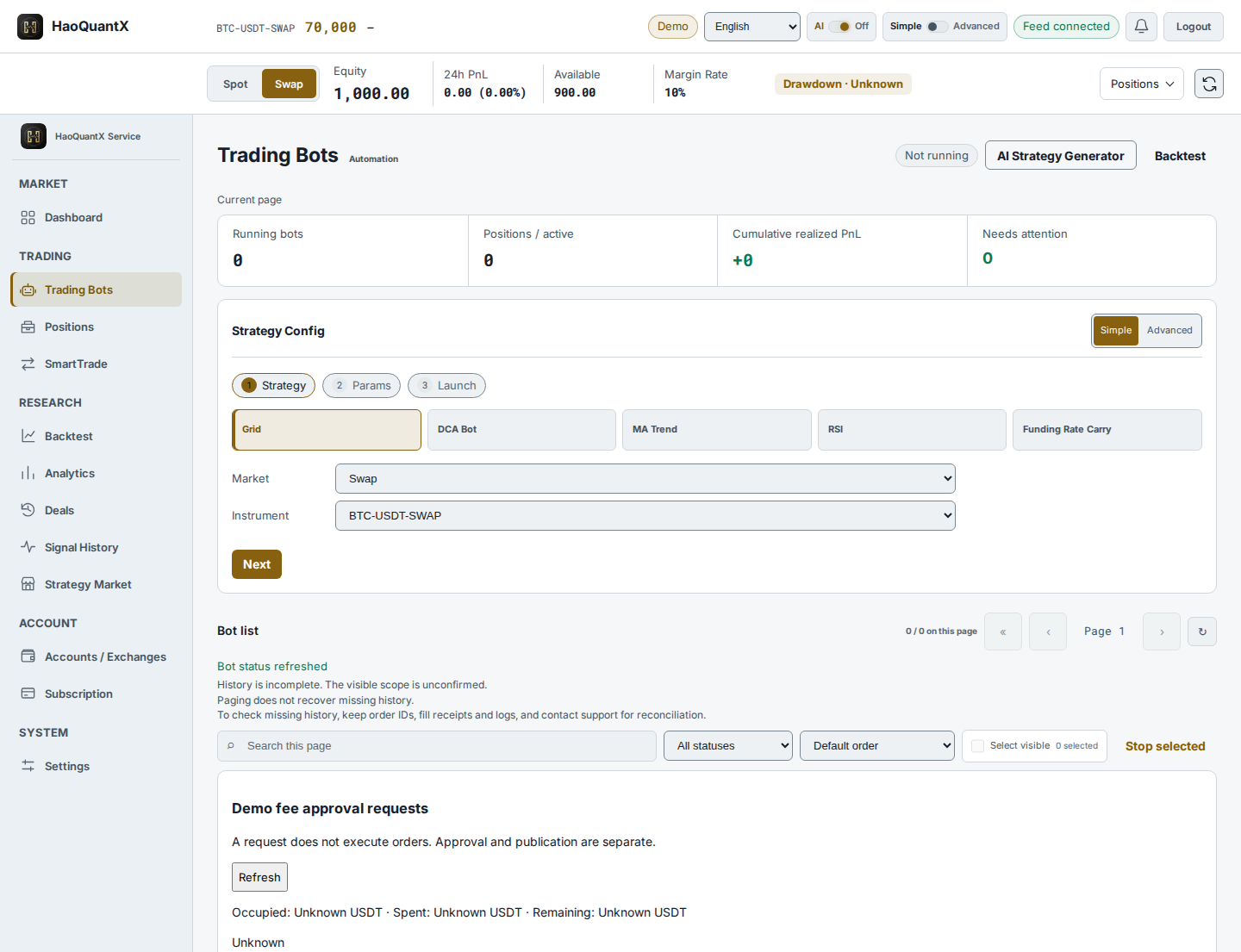
Current Trading Bots workspace · synthetic Demo data · no live credentials or performance claims

Validate before execution

Run your first decision-ready backtest

Updated 27 Aug 2026
Prerequisites

A HaoQuantX account. No exchange API Key or paid plan is required.

Success signal

The report shows costs, drawdown, yearly results and an out-of-sample verdict.

Steps

  1. Open Backtest and start with the prefilled instrument and conservative defaults.
  2. Confirm the date range, fees, slippage and funding assumptions.
  3. Run the test and review net return, drawdown, liquidation history and out-of-sample evidence together.

Common errors No sample usually means the selected range has no usable candles. A negative result after costs is valid evidence, not a rendering failure.

Stop or roll back A backtest places no exchange orders. Change one assumption at a time and rerun; do not overwrite the evidence you used for a decision.

Turn reviewed evidence into a Demo draft

Updated 27 Aug 2026
Prerequisites

A completed backtest whose costs and out-of-sample result you have reviewed.

Success signal

A saved draft does not mean execution started; confirm the original request status.

Steps

  1. Open Trading Bots and select the tested strategy.
  2. Copy the reviewed parameters, then compare the exposure summary with the backtest assumptions.
  3. Keep the environment on Demo and save the draft before connecting an exchange account.

Common errors If parameters changed or review failed, correct the configuration and request a fresh review.

Stop or roll back Leave the draft stopped or delete it. If it is already running, stop it before changing the environment or account.

Connect and review execution

Connect a least-privilege OKX API Key

Updated 27 Aug 2026
Prerequisites

Use a dedicated OKX Key with Read and Trade only and an environment matching Demo or Live. Do not enable Withdraw for normal automation. Protected withdrawals are disabled by default and currently reuse the account Key, which is an explicit least-privilege exception.

Success signal

The account card shows verified permissions, environment, IP state, validation time and only the Key suffix.

Steps

  1. In OKX, create a dedicated Read + Trade Key without Withdraw. Enabling the separately gated withdrawal workflow requires the deployer to accept and document the current single-Key permission exception.
  2. Open Accounts / Exchanges, choose the matching Demo or Live account, then enter API Key, Secret and Passphrase.
  3. Select Validate and save. Wait for the validation result; do not submit the form repeatedly.

Common errors Withdraw permission on a Live key is rejected while protected withdrawals are disabled or unready. Missing Read or Trade, an environment mismatch, invalid Passphrase, or a Live Key without an IP allowlist is always rejected.

Stop or roll back Revoke the Key in OKX first, then remove the account credential in HaoQuantX. Verify orders and positions directly in OKX.

Live trading is outside the initial release

Updated 27 Aug 2026
Prerequisites

Review the current supported Demo scope. Live is outside the initial release.

Success signal

A saved draft does not mean execution started; confirm the original request status.

Steps

  1. Check the original account, environment, parameters and risk limits.
  2. Request launch review and resolve every listed blocker before confirming.
  3. A saved draft does not mean execution started; confirm the original request status.

Common errors A disabled start button means the plan, credential validation, feed state or another launch check is not ready.

Stop or roll back Stop the bot before switching accounts or environments. Confirm open orders and positions at the exchange; stopping automation does not guarantee positions are closed.

Recover and manage access

Respond to stale data, failed orders or an exposed Key

Updated 27 Aug 2026
Prerequisites

Access to the exchange interface independent of HaoQuantX.

Success signal

Orders and positions are verified at the exchange, compromised Keys are revoked, and no action is being repeated blindly.

Steps

  1. Do not resubmit an order while its state is unknown. Open System Status and retain any request ID.
  2. Check open orders and positions directly at the exchange. Use the exchange interface to reduce urgent risk.
  3. If a Key may be exposed, revoke it at the exchange immediately, then stop affected bots and replace it with a new least-privilege Key.

Common errors A workspace error is not proof that an exchange order failed. A successful retry is not proof that the first request did nothing.

Stop or roll back Use the exchange as the source of truth. Keep request IDs and timestamps for investigation, but never include Secret or Passphrase in screenshots or messages.

Choose a plan and verify activation

Updated 27 Aug 2026
Prerequisites

A signed-in account is recommended so payment and activation remain attached to your workspace.

Success signal

Subscription shows the active plan, expiry and payment history; the required feature is unlocked.

Steps

  1. Open Subscription and compare Starter and Pro against the feature you need.
  2. Pay through the signed-in checkout or redeem an activation code.
  3. Wait for plan activation; payment and entitlements do not replace Demo launch approval.

Common errors Keep a guest order ID until activation completes. Do not create another order merely because settlement is still pending.

Stop or roll back A plan change does not close positions or stop bots. Review automation separately before expiry or cancellation.

Secure the account and prepare an account or data request

Updated 27 Aug 2026
Prerequisites

Access to your HaoQuantX account and the connected exchange accounts.

Success signal

2FA is enabled where available, unused exchange Keys are revoked, and the request contains no trading secret.

Steps

  1. Enable 2FA in Settings and review every connected account under Accounts / Exchanges.
  2. Revoke unused exchange Keys at the exchange and remove their saved credentials from HaoQuantX.
  3. For an account or data request, record the account identifier, request scope and relevant dates. Submit it only through a verified privacy channel once the operator publishes one.

Common errors Never send API Secret, Passphrase, password or 2FA recovery material. An informal social account is not a verified privacy channel.

Stop or roll back Before losing account access, stop bots and verify exchange positions. Revoking an API Key prevents future API actions but does not close existing positions.

Error code index

What a stable error code means and what to do next

Updated 28 Aug 2026

Use the code and request ID when investigating. Do not infer exchange state from a workspace error, and never retry an execution request blindly.

background_queue_unavailable
The job could not be durably queued. No successful start is confirmed; wait, keep the request ID, and retry only after service recovery.
backtest_failed
The backtest job reached a terminal failure. Open its job status, retain the request ID, and use the retry action after checking the reported cause.
strategy_review_not_ready
Launch checks found blocking conditions. Execution did not start; resolve every listed blocker and request a fresh review.
strategy_start_in_progress
A launch request with this idempotency key is still running. Query that same request instead of changing the key or submitting again.
strategy_start_outcome_unknown
The strategy may already have started although the result could not be saved. Check bots, orders and positions before any retry.
marketplace_evidence_ineligible
The verification snapshot did not meet the public evidence policy. Review every failed criterion and rerun validation before publishing.
marketplace_evidence_expired
The evidence is expired, withdrawn or otherwise inactive. The listing cannot be applied until its owner publishes a fresh eligible snapshot.
not_verified
The exchange credential has not completed security verification. Validate it again under Accounts / Exchanges before execution.
validation_stale
The credential verification is too old or has an invalid timestamp. Revalidate it; trading remains blocked until then.
withdraw_permission
The Live Key can withdraw funds, but protected withdrawals are disabled or unready. Remove Withdraw, or have an administrator complete every security gate and then revalidate the dedicated OKX Live Key.
permissions_invalid
The Key does not have the required Read and Trade permissions. Correct the permissions at the exchange and revalidate.
ip_allowlist_missing
A Live Key has no confirmed IP allowlist. Add the published service IPs at the exchange, then revalidate before trading.
50101
OKX reports a Demo/Live environment mismatch. Use a Demo Key with Demo mode or a Live Key with Live mode, then validate again before trading.

Messages may add context, but the stable code identifies the failure class. Exchange order and position state must still be verified at the exchange.